/* ==========================================
純 CSS 頁籤 (Tabs) 優化版 (支援 RWD + Neo-Brutalism)
========================================== */
.my-article .tw-tabs {
display: flex;
flex-direction: column;
width: 100%;
margin: 25px 0;
background: #fdf3d3;
border-radius: 8px;
overflow: hidden;
border: 2px solid #333; /* 改成 2px,比較一致 */
box-shadow: 4px 4px 0 #333; /* Neo-Brutalism 風格陰影 */
}
.my-article .tw-tabs-nav {
display: flex;
overflow-x: auto;
background: #fff8e7;
border-bottom: 2px solid #333; /* 統一成 2px,不會覺得特別粗 */
scrollbar-width: thin;
-webkit-overflow-scrolling: touch;
}
.my-article .tw-tabs-nav::-webkit-scrollbar {
height: 6px;
}
.my-article .tw-tabs-nav::-webkit-scrollbar-thumb {
background-color: #555;
border-radius: 3px;
}
.my-article .tw-tabs-nav label {
padding: 14px 18px;
cursor: pointer;
color: #666;
white-space: nowrap;
font-weight: bold;
transition: all 0.25s ease;
border-bottom: 3px solid transparent;
user-select: none;
flex-shrink: 0;
}
.my-article .tw-tabs-nav label:hover {
color: #333;
background: rgba(255, 255, 255, 0.4);
}
/* 隱藏真正的 radio */
.my-article input[type="radio"] {
position: absolute;
opacity: 0;
pointer-events: none;
}
/* ===== RustDesk 頁籤選中狀態 ===== */
#rd-win-radio:checked ~ .tw-tabs-nav label[for="rd-win-radio"],
#rd-and-radio:checked ~ .tw-tabs-nav label[for="rd-and-radio"],
#rd-ios-radio:checked ~ .tw-tabs-nav label[for="rd-ios-radio"],
#rd-web-radio:checked ~ .tw-tabs-nav label[for="rd-web-radio"] {
color: #1e40af;
border-bottom: 3px solid #3b82f6;
background: #fdf3d3;
}
/* ===== Chrome 遠端桌面 頁籤選中狀態 ===== */
#crd-win-radio:checked ~ .tw-tabs-nav label[for="crd-win-radio"],
#crd-and-radio:checked ~ .tw-tabs-nav label[for="crd-and-radio"],
#crd-ios-radio:checked ~ .tw-tabs-nav label[for="crd-ios-radio"] {
color: #065f46;
border-bottom: 3px solid #10b981;
background: #fdf3d3;
}
/* 內容面板 */
.my-article .tw-tabs-body {
background: #fdf3d3;
}
.my-article .tw-tab-panel {
display: none;
padding: 22px 20px;
animation: fadeEffect 0.4s ease;
}
@keyframes fadeEffect {
from { opacity: 0; transform: translateY(6px); }
to { opacity: 1; transform: translateY(0); }
}
/* 顯示對應面板 */
#rd-win-radio:checked ~ .tw-tabs-body #panel-rd-win,
#rd-and-radio:checked ~ .tw-tabs-body #panel-rd-and,
#rd-ios-radio:checked ~ .tw-tabs-body #panel-rd-ios,
#rd-web-radio:checked ~ .tw-tabs-body #panel-rd-web,
#crd-win-radio:checked ~ .tw-tabs-body #panel-crd-win,
#crd-and-radio:checked ~ .tw-tabs-body #panel-crd-and,
#crd-ios-radio:checked ~ .tw-tabs-body #panel-crd-ios {
display: block;
}
/* 防止 WordPress 自動加入的換行標籤撐開版面 */
.my-article .tw-tabs > br,
.my-article .tw-tabs > p { display: none !important; margin: 0 !important; }
/* 手機版微調 */
@media (max-width: 600px) {
.my-article .tw-tabs-nav label {
padding: 12px 14px;
font-size: 0.95em;
}
.my-article .tw-tab-panel {
padding: 18px 14px;
}
}
💻 好用的遠控軟體推薦:TeamViewer 一鍵安裝版與免費替代方案
每次過年過節回老家,或是大學同學突然密你,是不是常常被當作「免費的修電腦工具人」?要幫遠在天邊的長輩或朋友處理電腦疑難雜症,一款好用又穩定的遠端控制軟體絕對是你的必備救星 ✨
🔥 站長精選推薦:
雖然 TeamViewer 是老牌的遠端控制神器,但如果你常遇到連線被判定為商業用途而中斷的限制,個人非常推薦改換為完全免費開源的 RustDesk [1],或是 Google 推出的超穩 Chrome 遠端桌面 [2] 唷 💯
🔷 🔷 🔷
🛡️ 完全免費的遠端方案下載
為了解決許多讀者不想被收費牆卡住的困擾,站長特別整理了兩套在台灣鄉民圈口碑極佳的免費方案,無論你用哪種裝置都能輕鬆搞定 👍
🚀 RustDesk (開源跨平台首選)
🟢 🟢 🟢
🌐 Chrome 遠端桌面 (Google 官方出品)
🟫 🟫 🟫
💻 TeamViewer 一鍵安裝版使用教學
如果你還是習慣老牌的介面,這裡為你準備了最傻瓜式的快速上手流程 💡
第二步:解壓縮與執行
下載完成之後,點兩下剛剛下載好的 TeamViewer v15.40.8 – 遠端遙控工具.exe 開始安裝。安裝好後會在桌面建立一個 遠控軟體 – TeamViewer v15.40.8 的捷徑,接著點兩下此捷徑來啟動 TeamViewer 🏄♂️🏂🏄♀️
第三步:取得 ID 並開始連線
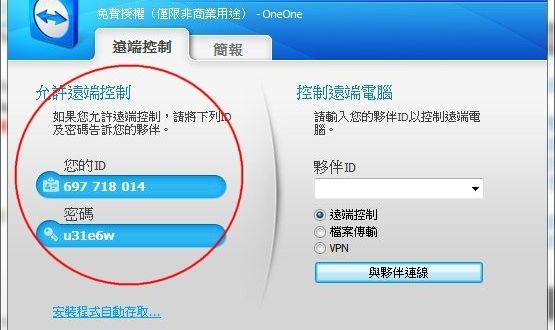
TeamViewer 啟動後,在左手邊窗格中會取得一組 ID 及隨機的密碼。只要在右手邊的「控制遠端電腦」框框中輸入對方的 ID,再點選「連線」即可連線到對方電腦 ⭕
💡 站長小技巧: 只要對方啟動好 TeamViewer,再把 ID 跟密碼告訴你(ID 跟密碼的框框都是可以滑鼠移動過去複製的,將密碼直接複製給對方可以很好的避免看不懂密碼唷),就可以很方便的遠端控制他的電腦囉 🤖👼🐱🚀
🔶 🔶 🔶
🔧 重置 TeamViewer ID 的隱藏密技
如果你的連線不幸被判定為商業用途,這時候就需要重置 ID 來解套。請先執行 TeamViewer,然後接著按「Win鍵 + R鍵」開啟執行視窗,執行同一個目錄底下的這支隱藏程式 📌
C:\PortableApps\TeamViewer\rClientID.exe
🟡 🟡 🟡
📖 關於 TeamViewer:強大的防火牆穿透神器
TeamViewer 是一款非常神奇的遠端軟體,我最早是在這邊看到的 👉 Jackbin 的懶人筆記 [23]。就算你的電腦藏在 NAT 後面也可以輕鬆遠控到(不管家裡有用分享器還是防火牆,通通都能暢行無阻),而且使用上真的超級方便。雖然說安全性偶爾會讓人質疑,但是在臨時救援上還是算很好用的,把這個官方免安裝版 [24]丟給對方下載好,再執行然後輸入 ID 跟密碼就可以順利遠控了 ✨
| 軟體名稱 | TeamViewer |
|---|
| 軟體版本 | 15.40.8 |
|---|
| 原創作者 | TeamViewer GmbH [25] |
|---|
| 軟體分類 | 網路相關 (遠端遙控) |
|---|
| 軟體性質 | 免費軟體 (個人非商業用途) |
|---|
| 語言介面 | 繁體中文、簡體中文、英文 |
|---|
多數傳統的遠端搖控軟體,通常都是操控者必須輸入被控者電腦的 IP 位址及密碼才能進行操控。IP 位址就像「經緯度座標」,對於電腦小白(比如隔壁銀髮族長輩)來說根本不知道去哪裡找;而若被控端處於防火牆或 NAT 後端,這時操控者可能就完全無法連線了 🙅♂️
這裡順便科普一下,為什麼說能穿透 NAT 和防火牆很神呢?一般的網路環境就像是「台灣豪宅社區的超嚴格保全與總機系統」,外面的人(外送員或幫手)找不到你的確切房號(IP位址),會直接被擋在門外。但 TeamViewer 擁有超強的穿牆能力,它在安裝完畢後自動產生的那組識別 ID,就像是「社區住戶專屬的 VIP 通行證」或「高鐵站的一次性取票代碼」。只要雙方都有這張證,看一眼就能唸給電話另一頭的工具人聽,直接略過保全精準抵達你家客廳幫你修東西 💯
正常來說,操控端和被控端都需要安裝 TeamViewer,但它還提供了非常貼心的 VNC 相容模式。若被控端啟用此模式,操控端也可以透過像是 UltraVNC 這類的程式來進行搖控。此外,被控端除了被控制的功能之外,也能單純分享出自己的桌面讓遠端操控者觀看 💡
這個模式可以在不影響被控端電腦的操作下,讓遠端協助者看到被控者的動作,並在遠端「指點」被控制端。VNC 相容模式的觀看功能,就像是「在你家客廳裝了一台單向監視器,並附帶雷射筆功能」。操控端(幫手)可以看到你在幹嘛,當遠端協助者在畫面上以滑鼠做點擊動作時,被控端的螢幕會出現一個 小紅點(就像雷射筆的光點)。這可以讓被控端更明白地知道應該點擊何處,且被控端並不會受到實質的滑鼠控制干擾,非常適合用來手把手遠距教學,不怕搶滑鼠打架 👍
📓 📓 📓
🔖 參考資料與延伸閱讀